Signing in & security
Note on the screenshots: the Vetoxera interface is currently German, and the screenshots come from an installation configured for the German market. Some labels in them – for example GOT-Katalog or DSGVO-Formulare – are named differently in an installation for the Emirates. The workflows and the layout are identical.
This chapter sets up your access: your first sign-in, a secure password and – recommended – two-factor authentication.
1. Your first sign-in
- Your practice management (or our team) sends you a personal setup link by email.
- Use that link to choose your own password – ideally with a password manager.
- From then on you sign in at your practice's address with email address and password.
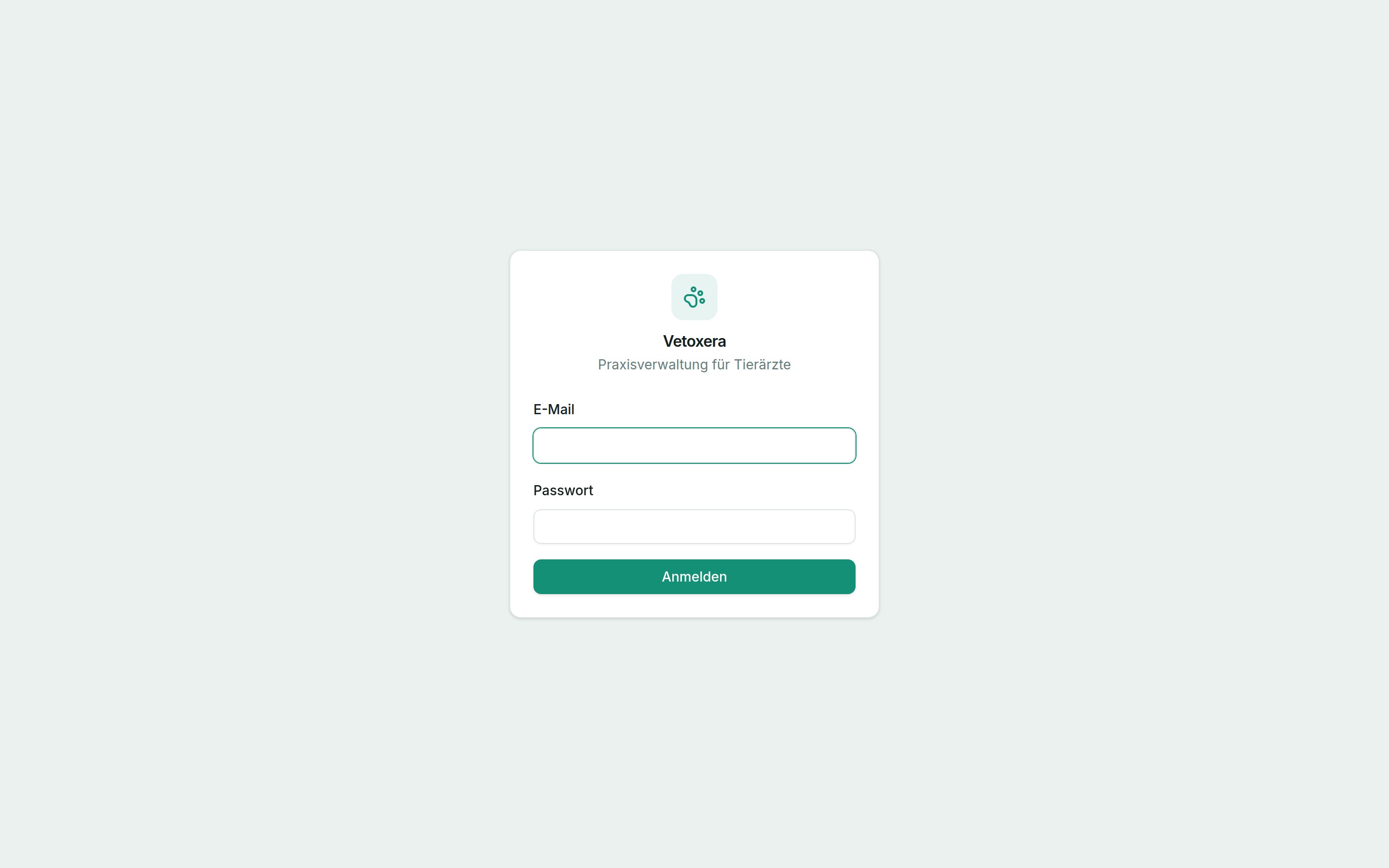
Please note: every member of staff gets their own account with their own initials (Kürzel). That way it stays traceable who recorded what. After several failed attempts, sign-in is locked automatically for 15 minutes.
2. Setting up two-factor authentication (recommended)
Two-factor authentication (2FA) protects your account in addition to the password. Vetoxera supports two methods – you set up both under My account (Mein Konto):
Option A: authenticator app (TOTP)
- Open My account → Two-factor authentication (Mein Konto → Zwei-Faktor-Anmeldung).
- Scan the QR code with an authenticator app (e. g. Apple Passwords, Google Authenticator).
- Confirm with the 6-digit code from the app.
Option B: passkey
- Open My account → Add passkey (Mein Konto → Passkey hinzufügen).
- Confirm with Face ID, Touch ID or Windows Hello.
- Next time you sign in, a glance or a fingerprint is enough.
Tip: passkeys also work in the Vetoxera apps for Apple and Windows – the apps guide you through the confirmation automatically when you sign in.
3. Forgotten your password?
Your practice management can send you a new setup link at any time under Users (Benutzer). For security reasons, passwords are never reset over the phone.